











Whether you are placing your first football bet or returning to check a live result, getting into your soccabet account should take only a few seconds. This page explains each main step, from signing in and creating a new account to using the platform on a phone and recovering access if something goes wrong. The instructions refer to the official website at soccabetttz.com, so check the address carefully before entering personal or payment details.

After signing in, you can view your dashboard, review bets, check available payment features, and manage account settings. Keeping your credentials private and understanding the recovery process reduces avoidable interruptions. The sections below cover the normal sign-in flow, registration, mobile access, the app, and common account problems.
Signing In to Your soccabet Account
The login form is available at the top of the website. Enter the phone number or email address used during registration, add your password, and select the sign-in button. When the details are correct, the platform opens your personal dashboard. A stable mobile-data or Wi-Fi connection helps the page load without interruption.
A few habits make everyday access safer. Use a password that is not shared with email or social-media accounts, avoid signing in on public computers, and sign out after using a borrowed device. Do not send your password or a verification code to another person. If you see activity you do not recognise, change the password and contact customer support promptly.
Creating a New Account
Registration usually takes a few minutes. Enter genuine information and check each field before submitting the form, because inconsistent details may cause delays if the account later needs verification.
- Step 1: Open the homepage and select the registration option in the top navigation.
- Step 2: Enter your mobile number or email address. This becomes the identifier used for future sign-in.
- Step 3: Add your personal details, including full name, date of birth, and country of residence.
- Step 4: Create a strong password with a mixture of letters, numbers, and at least one symbol.
- Step 5: Confirm your contact details with the verification code sent to your phone or inbox.
- Step 6: Accept the applicable terms and submit the form, then sign in after confirmation.
You must be at least 18+ to register. Keep one account in your own name and make sure the registration information matches your identification documents. This can make later account checks or withdrawal requests easier to resolve. Never create duplicate accounts to bypass a restriction or account limit.
Logging In from a Mobile Device
The mobile version of the soccabet website is designed for current Android and iOS browsers. Open the browser, go to soccabetttz.com, and use the sign-in control shown on the page. The fields and account steps are the same as on a computer, although the smaller screen may require scrolling to view the full form.
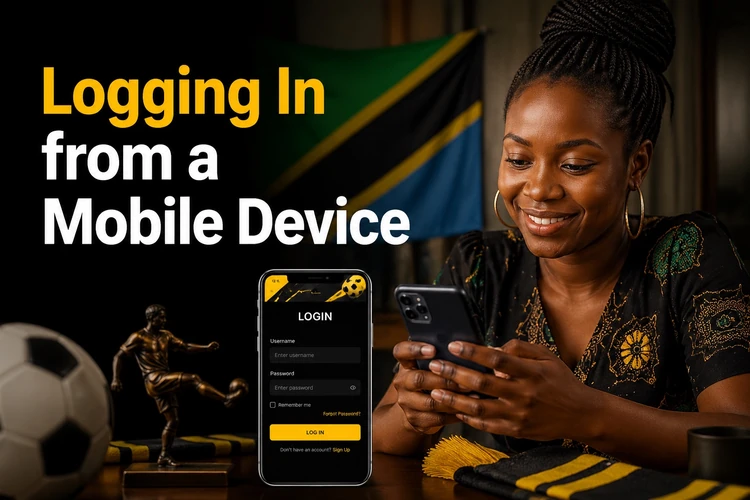
A 4G, 5G, or Wi-Fi connection is preferable when opening live markets or submitting an account request. If the page is slow, refresh it, clear old browser data, or switch networks rather than pressing the sign-in button repeatedly. Saving the official site as a home-screen shortcut can reduce typing, but check the address whenever the page opens. Keep the phone’s operating system and browser updated for better security.
Using the soccabet App
Players who use the service regularly may prefer the dedicated mobile app to a browser tab. After installation, the app can retain an active session until you sign out, depending on the device and its security settings. The first manual sign-in uses the same registered contact and password as the website.
On a personal phone, you may be able to enable fingerprint or face recognition after the first successful sign-in. A screen lock should still be enabled, since biometric access is only as safe as the device itself. Download the installation file from the official app download page and avoid unofficial copies that could collect credentials or alter payment details.
Review notification permissions after installation. Alerts may relate to account activity or service updates, but unnecessary notifications can be disabled in the app or phone settings. Sign out manually before lending the phone to someone else, even when biometric protection is active.
Recovering Access to Your Account
A forgotten password is normally handled from the sign-in page. Select the Forgot password? option below the password field, enter the registered phone number or email address, and wait for the reset link or one-time code. Follow the message instructions, choose a new password that you have not used elsewhere, and try signing in again.
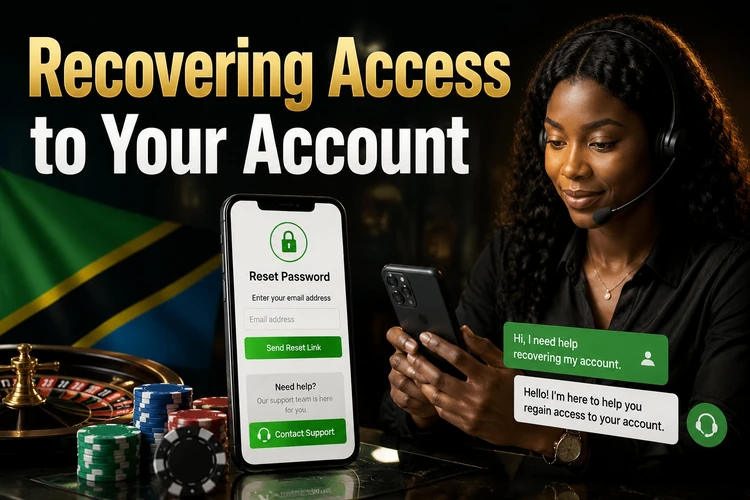
If you no longer control the registered phone or email, do not open a second account to work around the problem. Use the contact page and explain the issue without sending a password or full payment-card details. Support may ask for information needed to confirm ownership, such as your name or approximate registration details.
Several unsuccessful attempts can trigger a temporary security lock. Wait before trying again and check that the keyboard language, caps lock, and saved-password entry are correct. If the account remains restricted after a reset, contact support and follow its instructions. A password manager can store the new credentials securely, while two-factor or device security options should be enabled whenever they are available.
FAQ
Open soccabetttz.com and select the registration option. Enter your mobile number or email, provide the requested personal details, create a password, and confirm the contact with the verification code. The account can be used after the registration checks are complete.
Use the phone number or email address connected to your account and its password. Enter both in the sign-in form and submit it. If biometric access is enabled in the app, you may use the phone’s fingerprint or face-recognition feature instead.
Select Forgot password? on the sign-in page and enter your registered contact. Follow the reset link or code sent to your phone or email, then create a new password. Do not share the reset message with anyone.
Check that the phone number or email was entered correctly, then wait briefly and request another code. Check your email spam folder or whether SMS from unknown numbers is blocked. If the code still does not arrive, contact support without creating a duplicate account.
You can sign in from a phone, tablet, and desktop, but keep the account under your own control. Sign out on shared devices and avoid saving credentials in a public browser. If you notice an unfamiliar session, change your password and ask support for help.
It is safer on a personal phone protected by a strong screen lock or biometric security. On a shared or borrowed device, sign out after every session. Do not allow another person to use your unlocked app or view account messages.